

GETTING STARTED
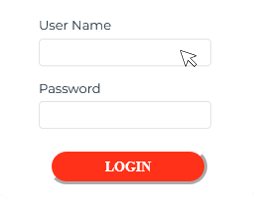
1. Login using the credentials provided.
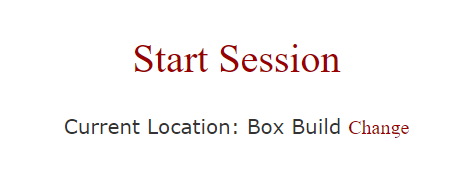
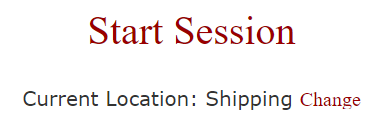
2. Once logged in, check if you are in the correct location and start a session.
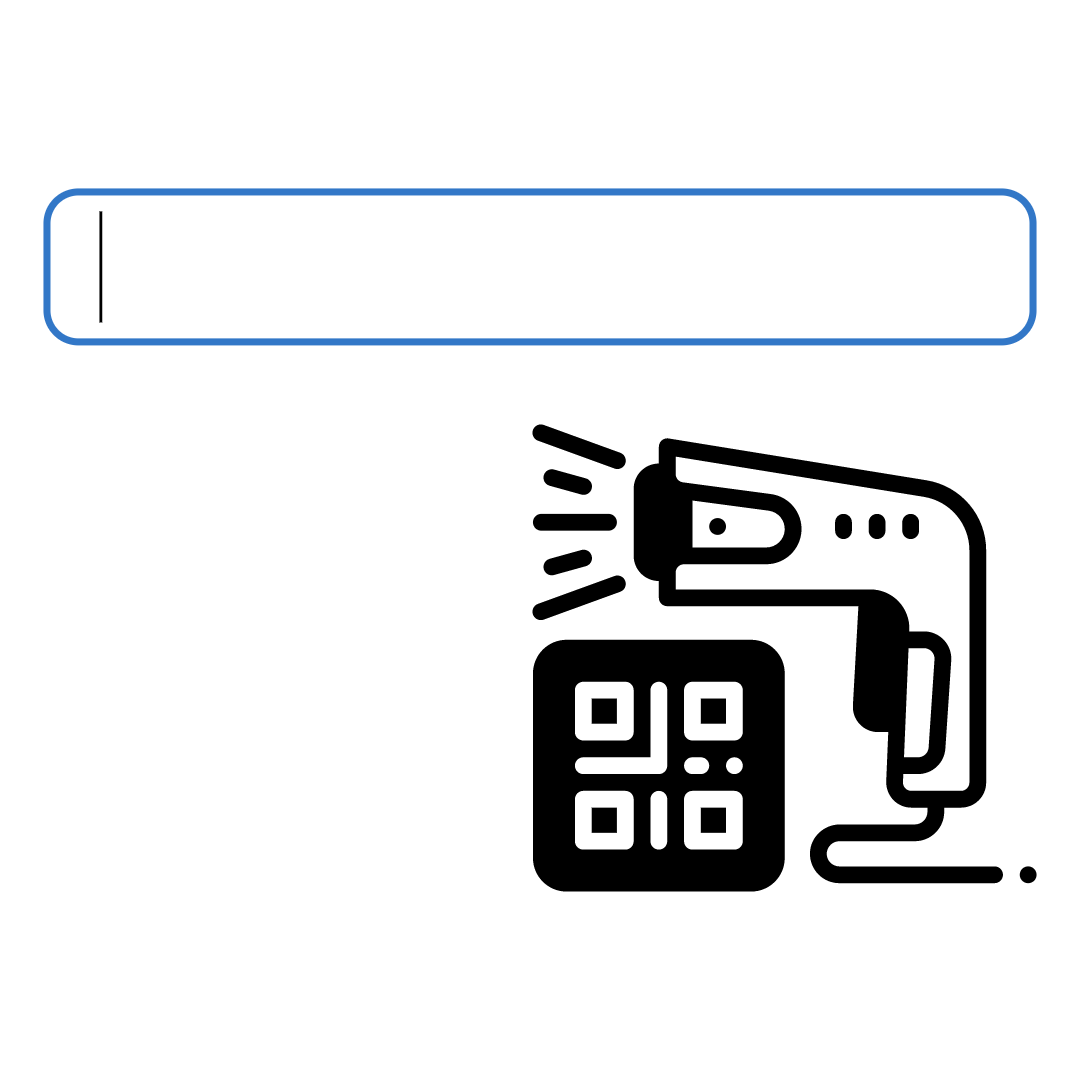
3. To begin the session scan or enter your employee number.
4. A pop-up window will show. Toggle the 'Show virtual keyboard' button and the keyboard will appear.
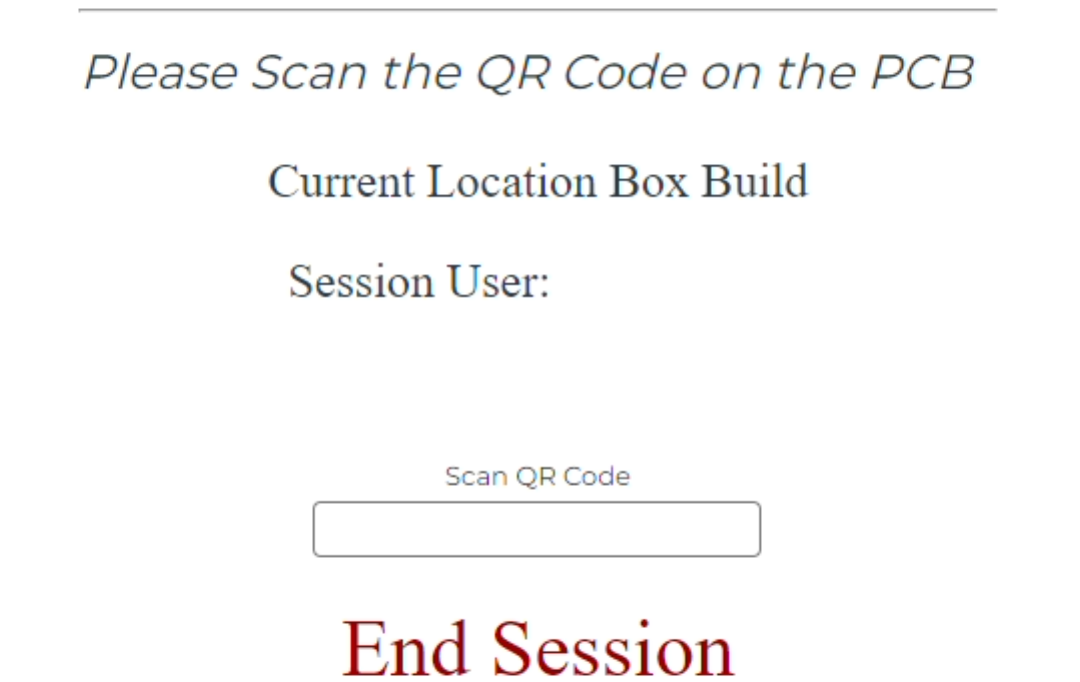
The start screen will show your name according to your employee number and your current location. From here you can scan the QR code of the product you wish to update or end your session. If you wish to change your location, you will need to end your current session first.
UPDATING PRODUCTS
1. From the start screen, scan the product QR code.
2. This will direct you to the update page. Once you have updated the product you will be taken back to the start screen.
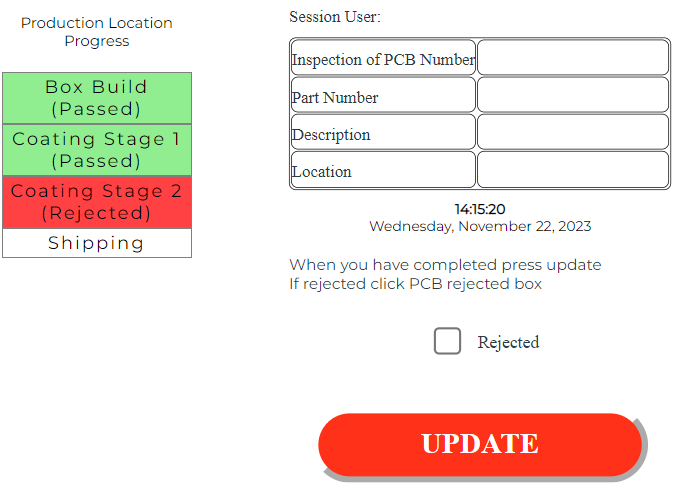
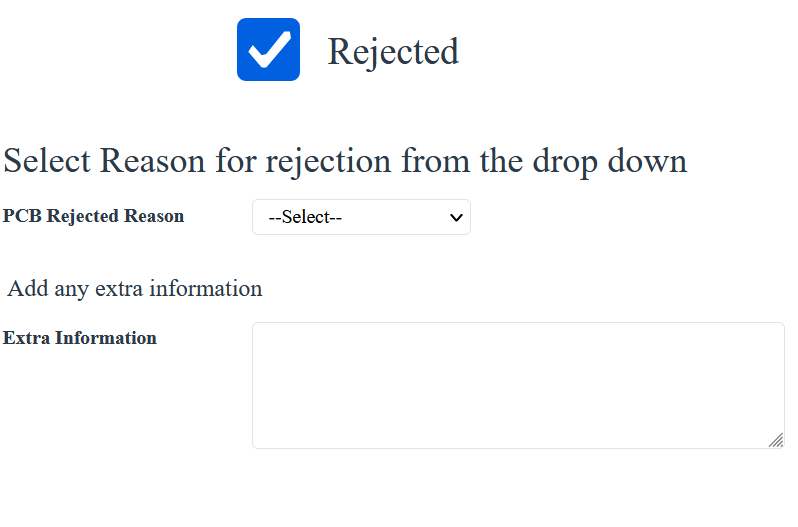
3. To reject a product, check the 'Rejected' box. You will be prompted to select a reason and fill in some additional information.
4. There will be multiple prompts to ensure the product is going to the right locations at the right time.
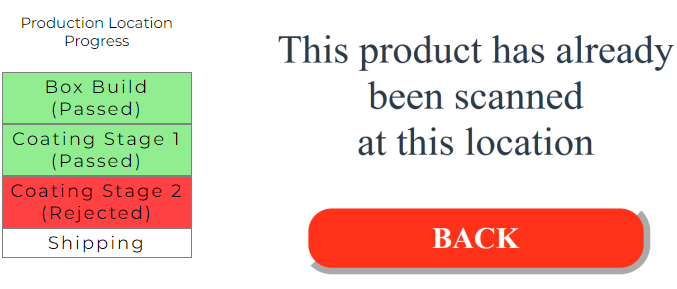
If a product has previously been rejected, it will have to go through 'Rework' before it can be scanned again and updated.
CHANGING LOCATION
1. From the start screen, before you have started a session, click 'Change' next to your current location.
2. Select the location you wish to change to from the dropdown and click 'Update'.
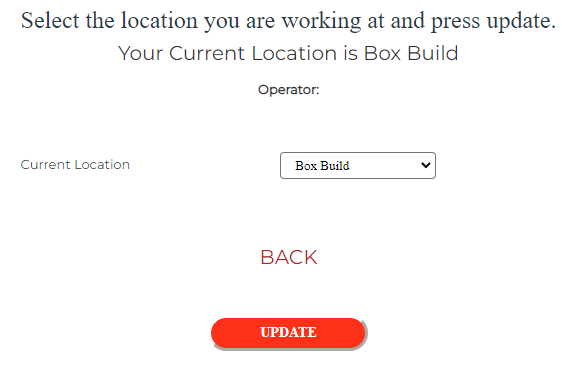
3. You will be prompted to login again to save the change.
4. Once you have logged back in, you will arrive back at the start screen. Your new locayion will be visible.
ENDING A SESSION
1. From the start screen, select 'End Session'.
2. Scan or enter your employee code to end the session.
3. If the current session user is not available, you can scan your own employee code to end the session.
4. You MUST end your session BEFORE you logout.
Once a session has been ended, you will be taken back to the start screen. From there you can log out.